Running INCInERATOr on a Kepler Target
In this tutorial, we will learn how to use incinerator!
Step 1: Imports
First, make sure you are running the notebook in the correct environment (if you created one). Your Python kernel should be set to that environment.
Next, import incinerator and a few other useful packages.
import pandas as pd
from astropy.io import fits

import incinerator.localize as loc

%matplotlib inline
Step 2: Initialize Localize Object
NOTE: incinerator can now handle observations from multiple epochs using the Multi_Localize class. An udated tutorial notebook showing this feature is coming soon!
Get Your File
For this tutorial, we will use the Quarter 1 target pixel file (TPF) for Kepler-8 (KIC 6922244).
⚠️ Important:
incineratorrequires a local file when using Kepler or TESS TPFs, because it relies on information in the.fitsheader.
You have two options:
1. Download manually
You can download the TPF from MAST Kepler Search.
2. Download using astroquery
You will need to add the following to your imports:
from astroquery.mast import Observations


```python
#you can find the file in the tutorials/` folder inside the `docs/` directory on GitHub.
file_path = "kplr006922244-2009166043257_lpd-targ.fits"
#opening the file
hdu = fits.open(file_path)

#extracting time, flux cube (in this case a tpf), and flux cube error
time = hdu[1].data['TIME']
flux = hdu[1].data['FLUX']
flux_err = hdu[1].data['FLUX_ERR']
Load Your TCEs
You will also need the information for the Threshold Crossing Events (TCEs).
You have two options:
1. Read from a CSV file
2. Create a pandas DataFrame manually
Note: Kepler-8 only has one TCE, but if your target has multiple TCEs, you can simply add each of them as a row in the same DataFrame.
Important: Make sure the dataframe includes the columns:
period→ in units of dayst0→ in BJDtdur→ best rounded to two significant figures and in units of days
#creating tce dataframe
tces = pd.DataFrame({'star_id':6922244.01,
                     'period':3.5224,
                     't0':121.1194228+2454833,
                     'tdur':.12},index=[0])
Initialize the Localize Object
Now it’s time to create a Localize object!
You will need to provide the following inputs:
time→ 1D array of time values in BJDflux→ 3D flux cubeflux_err→ 3D array of per-pixel uncertaintiestces→ TCE DataFrame containing period, t0, and tdurid→ target's identifier (ie KIC or TIC)ra_targ,dec_targ→ target coordinates in degreeswcs→ WCS solution for pixel-to-sky transformationsepoch→ epoch of the input coordinates
Optional: If you are analyzing a background star in the TPF, you can also include bonus RA and DEC.
If these inputs are already available, you can initialize the object directly:
loc_obj = loc.Localize(time=time, flux=flux, flux_err=flux_err, tces=tces,
                    id='6922244', ra_targ=ra_targ, dec_targ=dec_targ,
                    wcs=wcs, epoch=epoch, mission='kepler')
When starting from a Kepler or TESS TPF, the static method can load these inputs automatically:
#initialize you Localize class object
loc_obj = loc.Localize.from_tpf_info(file_path,tces,'6922244',mission='kepler')
/Users/jmoquin/mypy/incinerator/.venv/lib/python3.11/site-packages/erfa/core.py:133: ErfaWarning: ERFA function "pmsafe" yielded 4 of "distance overridden (Note 6)"
  warn(f'ERFA function "{func_name}" yielded {wmsg}', ErfaWarning)
/Users/jmoquin/mypy/incinerator/.venv/lib/python3.11/site-packages/erfa/core.py:133: ErfaWarning: ERFA function "pmsafe" yielded 1 of "distance overridden (Note 6)"
  warn(f'ERFA function "{func_name}" yielded {wmsg}', ErfaWarning)
This is the recommended approach when working directly from a TPF.
See the API documentation for the complete list of parameters.
Step 3: Build the Design Matrix
Now we get to the easier part: running the necessary functions.
We need to build the design matrix, which incorporates all of the TCEs in your DataFrame.
incinerator now supports a batman transit model in addition to the box model. The transit model can be selected using the transit_method parameter. When using batman, you will need to provide precomputed model parameters (e.g., \(R_p\), limb darkening coefficients, and inclination) for each TCE.
Step 4: Generate Heatmaps and Fit PRF
Solve for the transits
First, we solve for the weights of each transit component in the design matrix.
If your target has multiple TCEs, they are solved simultaneously.
/Users/jmoquin/mypy/incinerator/src/incinerator/localize.py:531: RuntimeWarning: invalid value encountered in sqrt
  self.weights_err[idx] = np.sqrt(np.diag(np.linalg.inv(sigma_w_inv)))
Fit PRF model
Next, we fit the PRF model to the resulting heat map to determine the likely location of the signal on the CCD.
If your target has multiple TCEs, you have two options:
1. Fit all TCEs at once
2. Fit one TCE at a time
Fit Result
| fitting method | leastsq |
| # function evals | 48 |
| # data points | 35 |
| # variables | 3 |
| chi-square | 975.053016 |
| reduced chi-square | 30.4704067 |
| Akaike info crit. | 122.450032 |
| Bayesian info crit. | 127.116077 |
| name | value | standard error | relative error | initial value | min | max | vary |
|---|---|---|---|---|---|---|---|
| centery | 2.20424801 | 0.02157443 | (0.98%) | 2.1904447560534286 | 0.00000000 | 5.00000000 | True |
| centerx | 2.83480228 | 0.01766358 | (0.62%) | 2.7563988033219746 | 0.00000000 | 5.00000000 | True |
| amplitude | 384.896472 | 8.29757202 | (2.16%) | 98.6776473117501 | 0.00000000 | inf | True |
By default, fit_to_heatmap() initializes the fit at the target's catalog position, using ra_bonus/dec_bonus when available and otherwise ra_targ/dec_targ. If a better estimate of the source location is known, an initial pixel location can be provided with initial_loc=(col, row):
Step 5: Visualize Results
Plot the results
/Users/jmoquin/mypy/incinerator/src/incinerator/localize.py:901: RuntimeWarning: Mean of empty slice
  cax1 = axes[0].imshow(np.nanmean(self.flux, axis=0),origin='lower')
Interpreting results
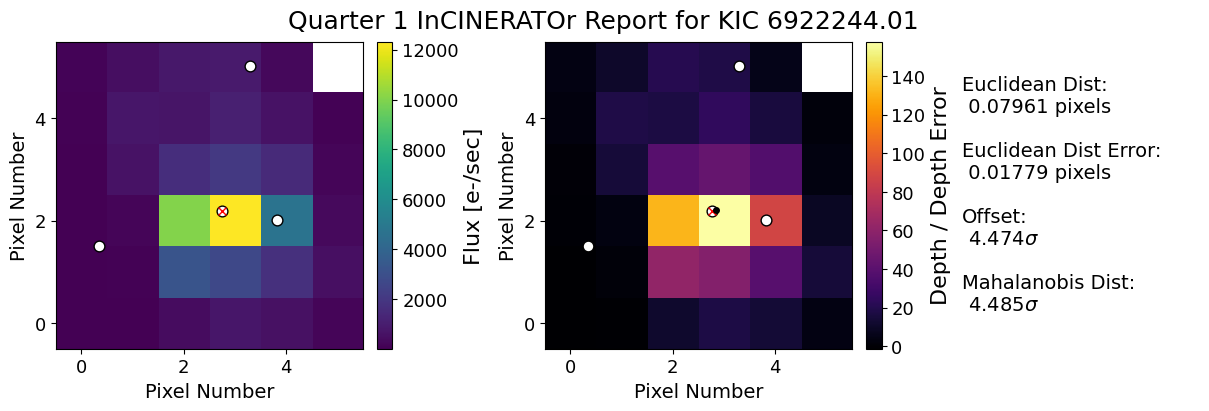
The output figure contains two panels:
-
Left panel: The Target Pixel File (TPF)
-
Right panel: The "transit localization" heatmap
- The red X marks the star of interest.
- The black dot shows the fitted location of the transit signal.
- Error bars represent the uncertainty in the fitted position.
The localization results include several metrics describing the separation between the fitted position and the position of the star of interest: - Euclidean distance: The distance between the fitted and star-of-interest positions in pixels. - Euclidean distance error: The uncertainty in the Euclidean distance. - Offset: The Euclidean distance divided by its uncertainty, expressed in units of \(\sigma\). - Mahalanobis distance: A two-dimensional measure of the separation that accounts for the uncertainties in both coordinates and their covariance.
If the fitted position is close to the pixel containing the star of interest, this suggests the transit signal is likely originating from that pixel. Larger offsets may indicate that the signal is coming from a nearby contaminating source instead.